Can I Make a Receipt With the Same Tool as the Invoice Generator?
Usually, yes. Many invoice generators can also create receipts—or let you turn a paid invoice into a receipt—without needing a separate app. The important question is whether the tool gives you the right document for the transaction: an invoice asks a customer to pay, while a receipt confirms that payment has already been made.
If you need a document quickly, a browser-based receipt generator can be a straightforward option. You enter the transaction details, check the totals, and use Download PDF to save a copy. Some tools also offer Save & Send for keeping a draft or delivering it to the customer. Before choosing one, check how it handles privacy, payment status, numbering, and exports—especially if you want to use the same tool for both invoices and receipts.
Invoice or receipt: which one do you need?
An invoice records a request for payment. It typically shows the amount due, the payment terms, and the date payment is expected. A receipt records payment that has already happened. It should show what was paid, when it was paid, and whether the payment was full or partial.
That distinction matters even when the documents contain similar information. Sending an unpaid invoice with “receipt” at the top can confuse a customer. Likewise, marking an invoice paid before the money has arrived can create a bookkeeping headache. If your generator supports both documents, make sure you can clearly set the payment status and identify the document type.
Document What it tells the customer Details to check Invoice Payment is requested Invoice date, due date, amount due, payment terms Receipt Payment was received Payment date, amount paid, payment method, remaining balance if anyFor a simple sale paid immediately, a receipt may be all your customer needs. For work that will be paid later, send an invoice first and provide a receipt after payment. Some businesses also issue a receipt after each installment and a final receipt when the balance reaches zero.
Can one free invoice generator do both jobs?
A free invoice generator may include a receipt option, but “free” does not always mean every feature is included. Check whether you can create both document types, customize the payment status, export without a paid account, and reuse your business details. A tool that makes a PDF but puts a watermark on it—or requires signup before export—may not fit a quick, one-off job.
For example, when evaluating the-invoice-generator.net or another browser-based tool, look at the actual workflow rather than relying on a feature list. Can you open the form and start typing? Is the receipt clearly labeled? Can you download the finished PDF before creating an account? Are there limits on saved drafts, branding, or sending? Those details affect whether the tool is genuinely convenient for your situation.
A practical workflow should let you create a document without unnecessary steps:
- Choose invoice or receipt, or mark an invoice as paid if the tool supports that conversion.
- Enter the seller and customer details.
- Add the goods or services and confirm the total.
- For a receipt, enter the payment date and amount received.
- Preview the document and check the number, dates, and currency.
- Use Download PDF to save a copy, or use Save & Send if you want to keep or deliver it through the tool.
The exact labels vary by product. The essential test is whether the exported document tells the customer what happened without making them guess whether money is still due.
Fields that matter on an invoice—and on a receipt
Good-looking templates are useful, but accurate fields are what make the document clear. For an invoice, start with the basics and verify that the details match your records.
From
The “From” section identifies you or your business. Include the name customers recognize, a mailing or business address if appropriate, and a way to contact you. Depending on your location and business requirements, you may also need tax or registration details. Use consistent information across invoices and receipts so customers can match the document to the payment request.
Bill to
“Bill to” identifies the customer responsible for paying. Use the customer’s correct name and, for business clients, the right company or department. A receipt may label this area “Received from” or “Customer” instead. If the payer is different from the person or company receiving the goods or services, make that distinction clear.
Line items
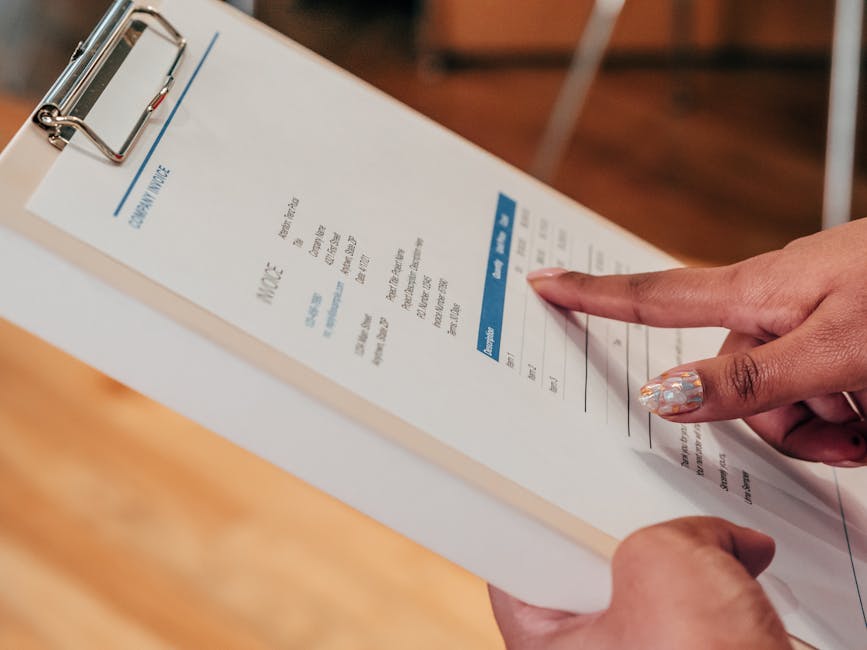
Line items explain what the customer is paying for. Give each item a useful description, quantity, rate, and line total. Add discounts, shipping, or taxes as separate entries when relevant. On a receipt, these details help confirm what the payment covered; on an invoice, they explain what is being requested.
Before exporting, calculate the subtotal and compare it with the final amount. Check that discounts are applied in the intended order and that tax is calculated on the correct base. If the customer paid only part of the invoice, show the amount received and the remaining balance separately.
Terms and payment information
Invoices should state how and when to pay. Include accepted payment methods or instructions, and make the payment terms easy to find. A receipt should instead identify the payment method or transaction reference when useful, along with the date and amount received. Avoid including sensitive payment details such as a full card number.
Payment terms and due date logic
Payment terms describe when an invoice is due. If you write “Net 30,” the customer generally understands that payment is due 30 days after the invoice date, unless your agreement or local rules define it differently. Always check the actual calendar date shown on the invoice; do not assume the software has calculated it the way you intended.
For example, if an invoice is dated April 10 and the terms are Net 30, a simple calendar-day calculation gives a due date of May 10. Month lengths, weekends, holidays, contract wording, and local practices can affect the date you choose, so confirm the displayed due date before sending. If your agreement says payment is due by a specific date, enter that date directly rather than relying on a generic term.
Receipts do not usually need a future due date because they confirm payment. If a customer paid only part of an invoice, show the amount paid, payment date, and outstanding balance. Keep the original invoice’s due date and terms on the invoice record rather than making the receipt look like a new request for the same money.
Fast PDF export without signup
When you need a receipt now, the ability to export a PDF directly from the browser can save time. A good download receipt PDF workflow should preserve the layout, keep the text readable, and show the full amount and payment status. Open the PDF before sending it. Check that the page is not cropped, the currency symbol is correct, and any special characters in names or descriptions display properly.
No-signup invoicing can be helpful for a one-time job or a small business that does not want another account to manage. It also lets you test a tool before deciding whether its extra features are worth paying for. Still, no-signup does not automatically mean private, and signup does not automatically mean unsafe. Read the tool’s privacy information and understand what happens when you save, send, or export a document.
In-browser privacy and local drafts
Some browser-based generators keep draft information locally in the browser, while others send or store data on their servers. These are different privacy models. If a tool says drafts are local, check whether that means they stay on the device, how long they remain available, and whether clearing browser data will delete them. A local draft can be convenient, but it is not a substitute for a dependable backup.
Also review the site’s privacy policy for analytics and other services. For instance, a site may use Google Analytics to understand general site usage. That does not by itself tell you whether invoice contents are collected, so look for a clear explanation of what information is measured and whether document data is transmitted. Avoid entering sensitive customer information until you understand the tool’s handling of it.
Account options deserve the same care. A button such as “Continue with Google” may simplify sign-in, but it means you are using an account-based workflow rather than a fully anonymous one. Check what account permissions are requested and whether you can still export your documents if you stop invoice number prefix using the service. If privacy or quick access is your priority, see whether the tool allows creation and PDF export without signing in.
Keep invoice and receipt numbers organized
If you issue both invoices and receipts, decide how their numbers will work before you start. Some businesses use one sequence for invoices and a separate sequence for receipts. Others use a receipt that references the related invoice number, such as “Receipt for INV-1042.” Either approach can work if it is consistent and your records make the relationship clear.
Before sending a document, double-check that its number is unique. Duplicate invoice numbers can make it harder to identify payments, follow up on balances, or answer a customer’s question. If you create documents in multiple tools or devices, keep a simple record of the last number used. A generator may suggest a number, but you are responsible for checking it against your existing records.
When a paid plan may be worth considering
A free tool may be enough if you create occasional PDFs and keep your own copies. Paid features may be useful if you need recurring invoices, customer records, saved templates, or sending and tracking features. Compare the features you will actually use, not just the monthly price. Confirm whether the price is billed monthly or annually and whether export remains available if you cancel.
For example, a plan might be presented as: Pro: $39 a year ($3.25 a month, 35% off) or $5 a month. US dollars, plus tax where it applies. Cancel any time. Check the billing period at checkout so you know whether you are choosing the annual charge or the monthly option. Also verify which features are included in Pro and whether the free workflow still lets you create and download documents.
A quick checklist before you send a receipt
- Is the document clearly labeled as a receipt, not an unpaid invoice?
- Are the seller and customer names correct?
- Do the line items and total match the transaction?
- Does it show the payment date, amount received, and any remaining balance?
- Is the receipt number unique and linked to the invoice if relevant?
- Does the downloaded PDF display correctly on the page?
- Have you saved a copy somewhere you can find later?
The bottom line
Yes, you can often make a receipt with the same tool as an invoice generator. Look for a clear way to mark payment as received, include the payment date and amount, and export a clean PDF without unwanted steps. A no-signup tool can be convenient for fast one-off documents, while local drafts and privacy disclosures matter if you plan to enter customer details or return to saved work.
Whether you use the-invoice-generator.net or another service, test the whole process once: create the document, confirm the dates and number, preview it, and use Download PDF or Save & Send as needed. The right tool is the one that makes the difference between “payment requested” and “payment received” unmistakable—and leaves you with a reliable copy for your records.